
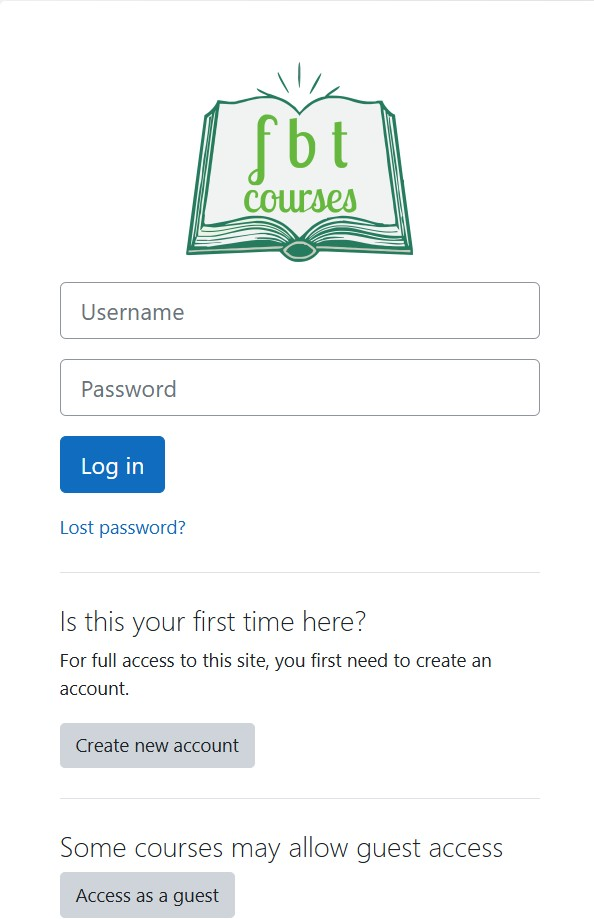
Login Page — New Account
To create a new account: Select “Create New Account”
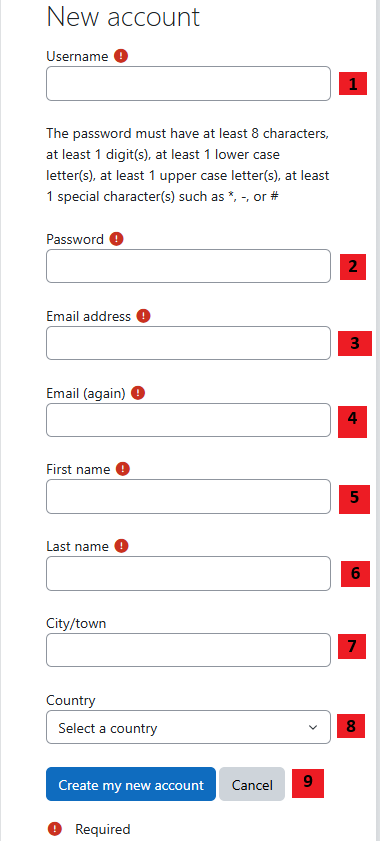
New Account Info
- Enter desired username
- Enter a Password (Must follow password requirements.)
- Enter email (required to create an account.)
- Enter email again (to confirm correct entry.)
- Enter your first name.
- Enter your last name.
- Enter the city/town where you live. (Not required, but useful.)
- Enter the country where you live. (Not required, but useful.)
- Review form for accuracy, then select “Create new account.”
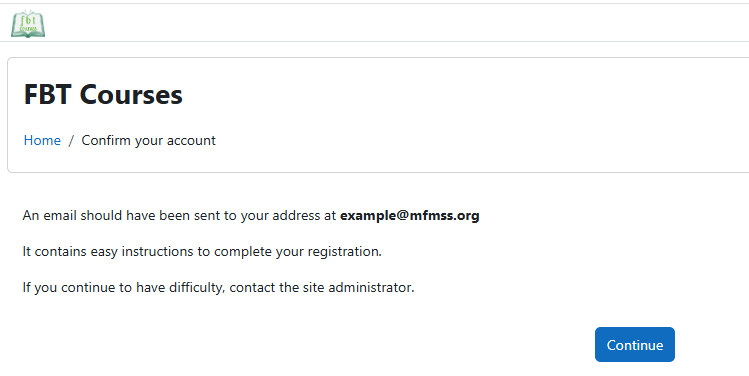
Email Notification Page
A page confirming where a registration confirmation email has been sent. (Login cannot occur until registration via the email is complete.)
Click “Continue” to complete this part of the process.
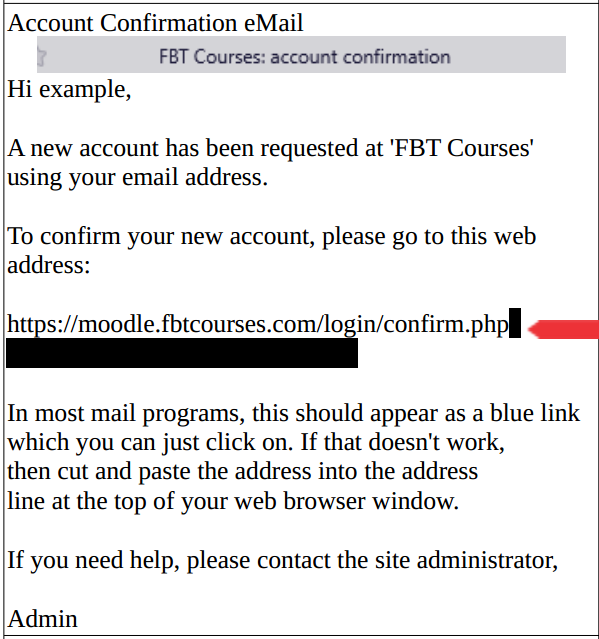
Account Confirmation Email
The account must be confirmed before you can use it to log in with. This is a sample of what the email will look like.
Open the one sent to your email, and follow the link provided. (Copy and paste it if clicking it doesn’t work.)
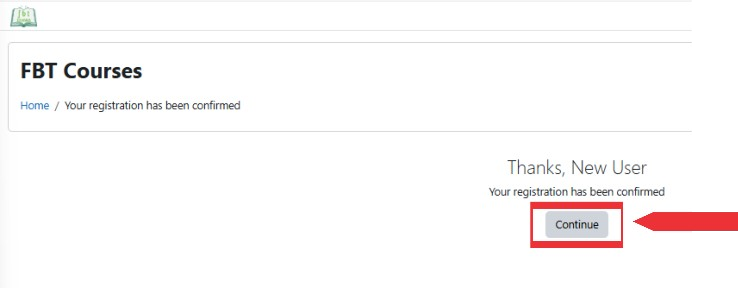
Logged In via Registration Email
You are now logged in to the system (via the registration email.) To log in later, you will have to use the username and password you created your account with.
Select “Continue”
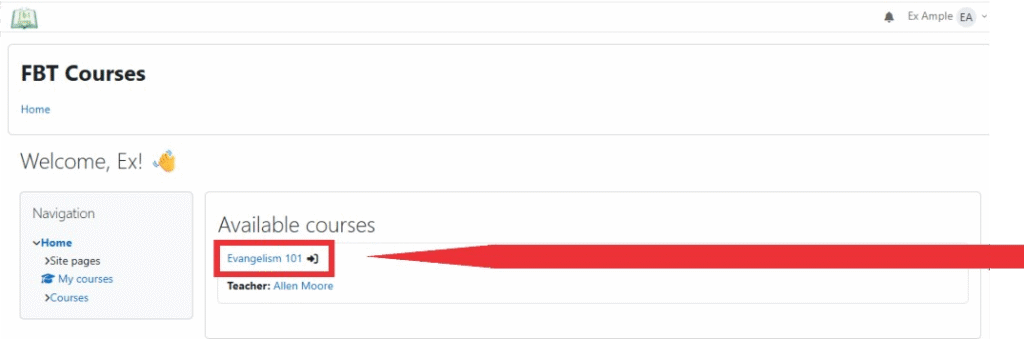
Home Page — Selecting Course to Enroll In
A list of courses is available and should be displayed. (Also can be found under Navigation > Courses)
To take a course, you must first enroll in that course.
Select the desired course you wish to enroll in.
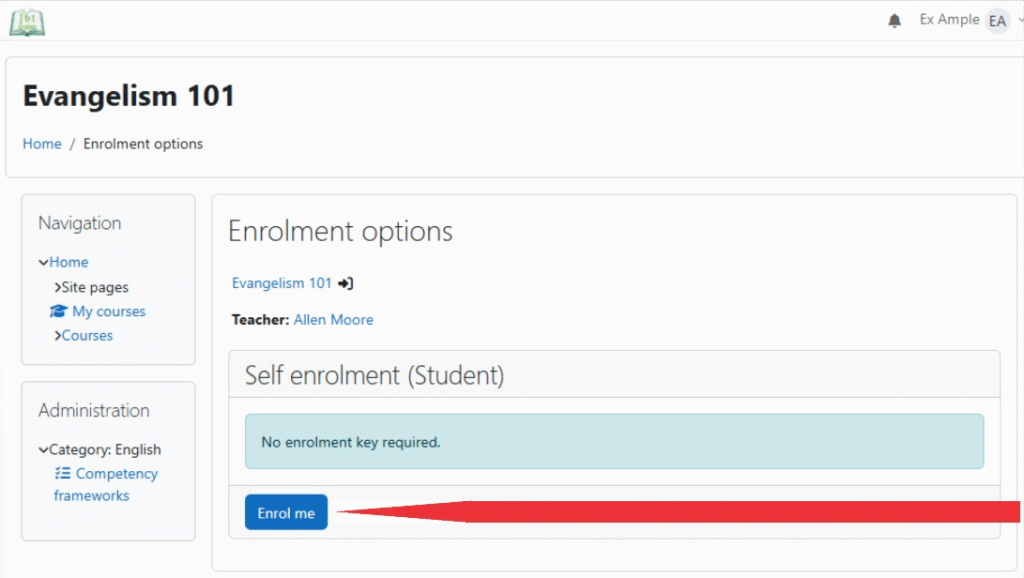
Course Enrollment Page
Select “Enroll Me”
A notification email will be sent to the email address associated with the account, confirming enrollment.
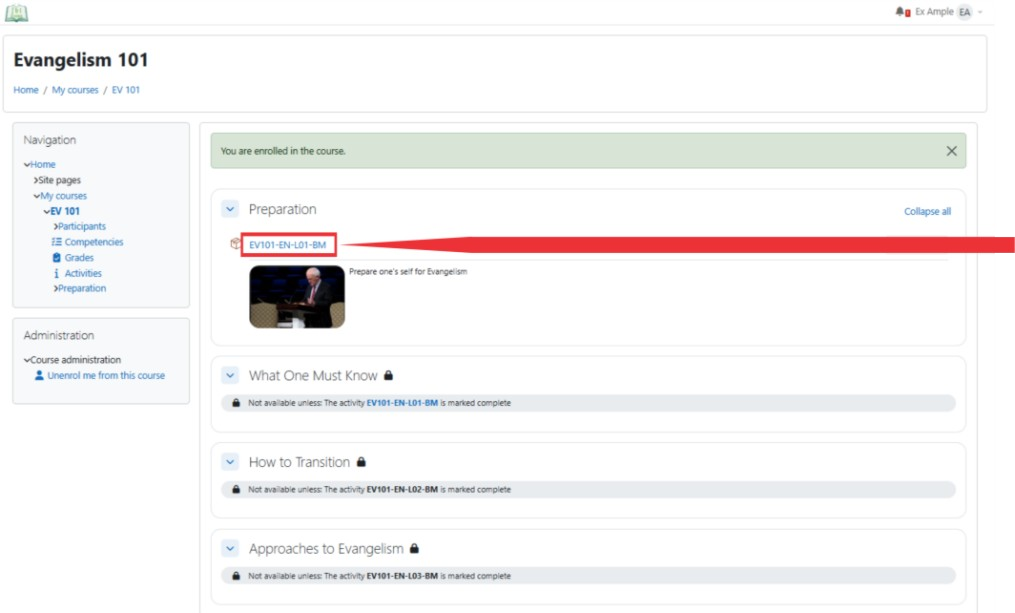
Course Home Page
You are now enrolled in the course. Select the first section’s lesson link/title to begin.

Lesson Main Page
This is a sample of a lesson’s main page. Instructions within the lesson will help you through it.
Select “Exit Activity” at any time to leave the lesson.
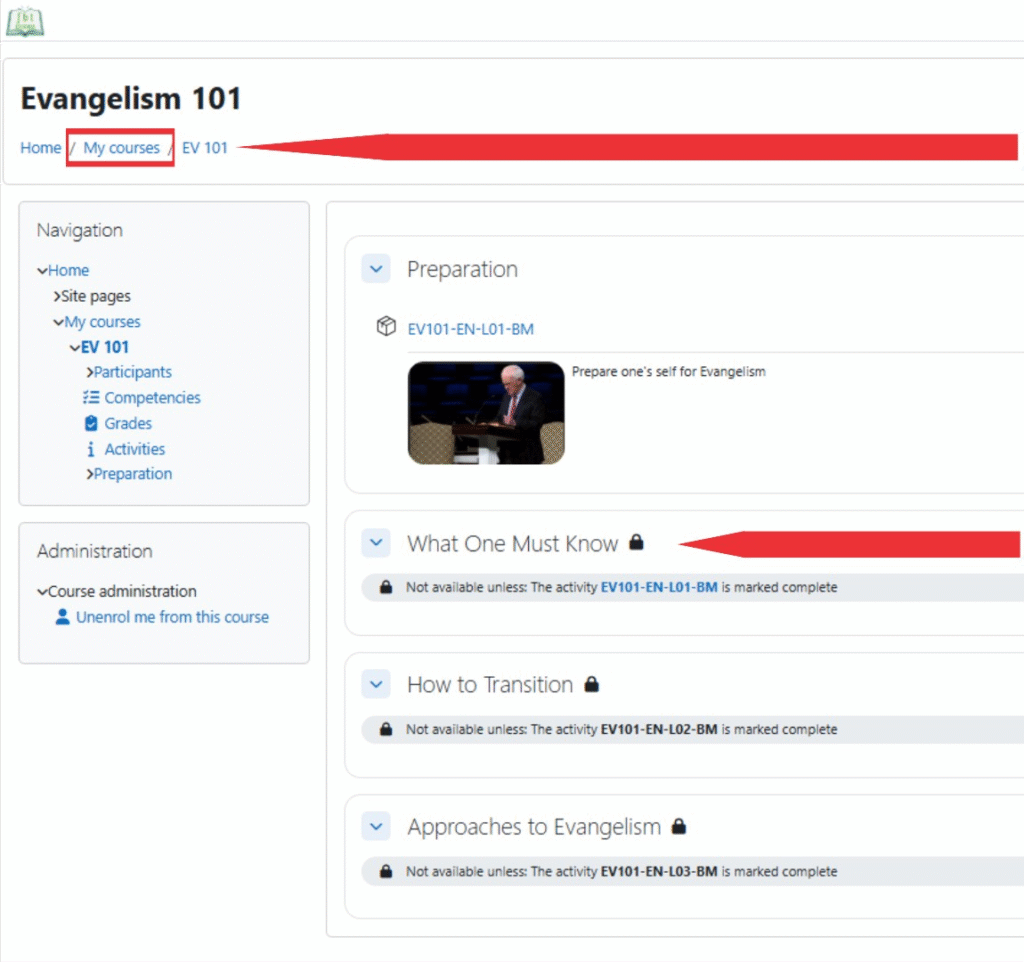
View / Access Other Courses / Lessons
To view another course you are enrolled in, click “My Courses”.
To view other courses available, click Home > Navigation > Courses as mentioned previously.
To view other lessons in the current course, you must first complete the previous/ current lesson, and mark it as complete. Then you can select the next available lesson.